Exness Account Create
Step 1 — Open Our Exness Link
පහළ button එක click කරලා link එකෙන් Exness registration page එකට යන්න. Click the button below to open the Exness registration page through link.
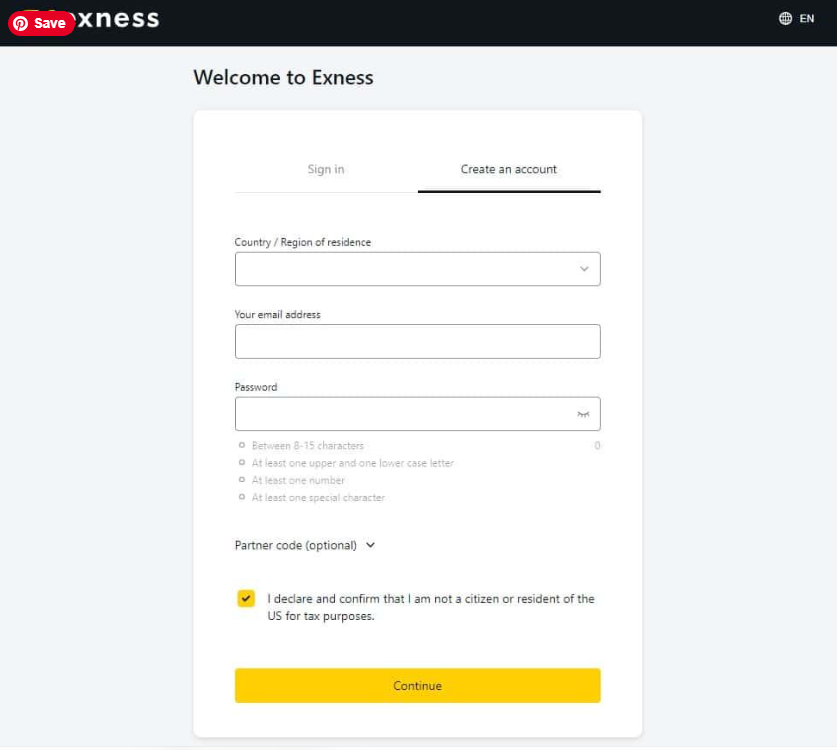
Step 2 — Enter Your Email and Password
ඔබගේ email address එක ඇතුළත් කරන්න. Enter your email address.
ශක්තිමත් password එකක් සාදාගන්න. Create a strong password.
Password එකට අදාළ කොන්දේසි සම්පූර්ණ කරන්න. Check the password requirements shown on the page.
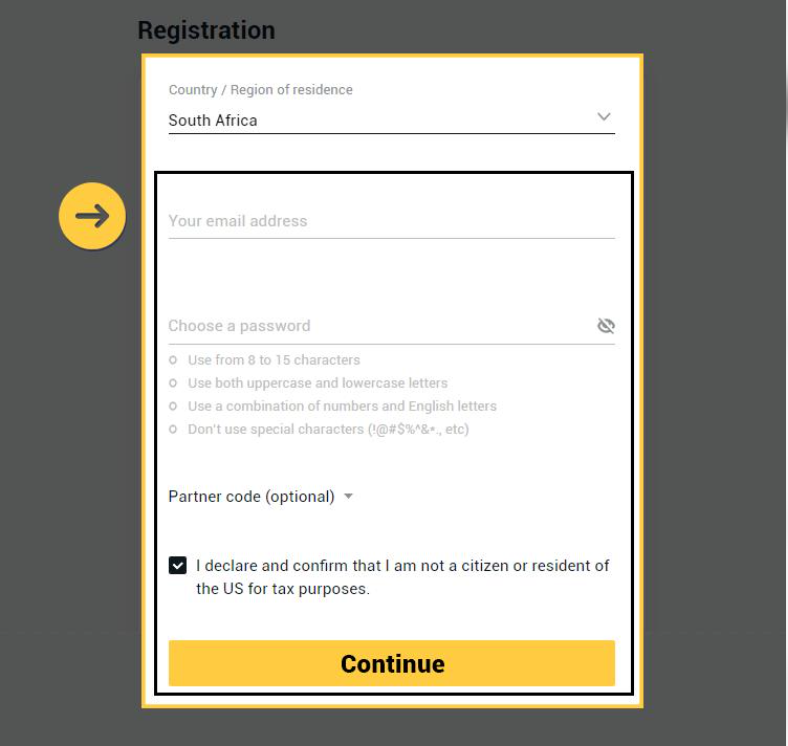
Register හෝ Continue click කරන්න. Click Register or Continue.
Step 3 — Create Your MT5 Trading Account
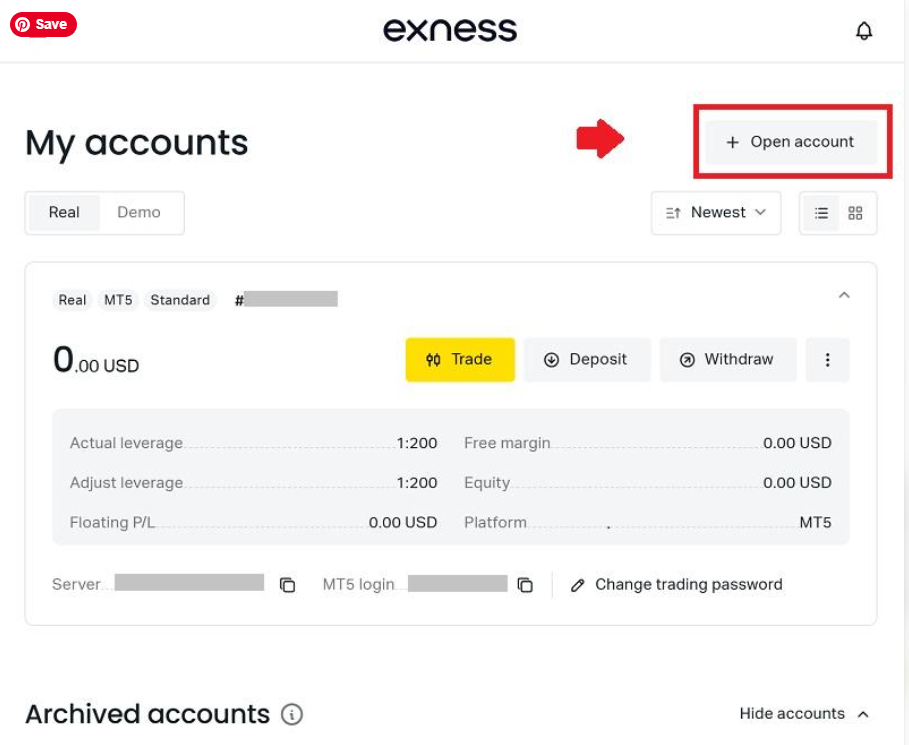
Registration එකෙන් පසු My Accounts → Open Account යන්න. Account type එක තෝරා Real හෝ Demo තෝරන්න. Platform එක ලෙස MT5 තෝරන්න. After registration, open My Accounts → Open Account. Choose an available account type, select Real or Demo, and choose the MT5 platform.
STEP 4 — CHOOSE YOUR EXNESS ACCOUNT TYPE
“Open Account” click කළාට පස්සේ ඔබට අවශ්ය trading account type එක තෝරන්න.
1. PRO Account — නිර්දේශිතයි
PRO account එක ලබාගන්න පුළුවන් නම් එය සලකා බලන්න. මෙහි spread එක 0.1 pips සිට ආරම්භ වන අතර සඳහන් trading instruments සඳහා commission අය නොකෙරේ. If the PRO account is available to you, consider choosing it. It offers spreads from 0.1 pips with no commission on the listed instruments.
2. ZERO Account — නිර්දේශිතයි
ZERO account එක ලබාගන්න පුළුවන් නම් එයත් සලකා බලන්න. සුදුසු instruments සඳහා spread එක 0.0 pips සිට තිබිය හැකි නමුත් trading commission එකක් අය වේ. If the ZERO account is available, you can consider this option. It offers spreads from 0.0 pips on eligible instruments, with a trading commission.
3. STANDARD Account — වෙනත් විකල්පය
PRO හෝ ZERO account එකක් ලබාගන්න බැරි නම් STANDARD account එකක් තෝරන්න. මෙහි trading commission එකක් නැති අතර spread එක 0.2 pips සිට ආරම්භ වේ. If PRO or ZERO is unavailable, choose a STANDARD account. It has no trading commission, and spreads start from 0.2 pips.
අපි Exness broker එක නිර්දේශ කරන්නේ එහි තරගකාරී අඩු spreads නිසා trading වියදම් අඩු කරගැනීමට උපකාරී විය හැකි නිසයි. නිතර trades open කරන automated trading bot එකකට අඩු spread එකක් ප්රයෝජනවත් විය හැකියි. We recommend Exness because competitive spreads can help reduce trading costs. Lower spreads may be especially useful for an automated trading bot that opens trades frequently.
Open Account click කළාට පස්සේ, PRO account හෝ ZERO account එකක් හදාගන්න පුළුවන් නම් හොඳයි. එහෙම බැරි නම් STANDARD account එකක් හදාගන්න.
අපි Exness broker එක තෝරගන්න හේතුවත් spread එක අඩු නිසයි (entry එක දාන තැනින්ම entry එක open වෙනවා). හැකිනම් PRO account හෝ ZERO account එකකට යන්න බලන්න.
After clicking Open Account, it is better to create a PRO account or a ZERO account if available. If not, create a STANDARD account.The reason we choose Exness as our broker is also because of its low spread (the entry opens right at the price where the entry is placed). If possible, try to choose a PRO account or a ZERO account.
අඩු spread එකක් නිසා trading වියදම අඩු කරගන්න සහ අපි entry එක දාන මිලට ආසන්න මිලකින් trade එක open වීමට උපකාරී වෙන්න පුළුවන්.Spread කියන්නේ BUY මිල (Ask) සහ SELL මිල (Bid) අතර වෙනසයි. සාමාන්යයෙන් අඩු spread එකක් තිබීමෙන් trade එකේ ආරම්භක වියදම අඩු කරගන්න පුළුවන්. A low spread can help reduce trading costs and may help a trade open at a price closer to the intended entry price.Spread is the difference between the BUY price (Ask) and the SELL price (Bid). Generally, a lower spread helps reduce the initial cost of a trade.
Exness account එකක් දැනටමත් තියෙන අය සඳහා For those who already have an Exness account
Step 1 – දැනට තියෙන Exness account එකට Login වෙන්න. Log in to your existing Exness account.
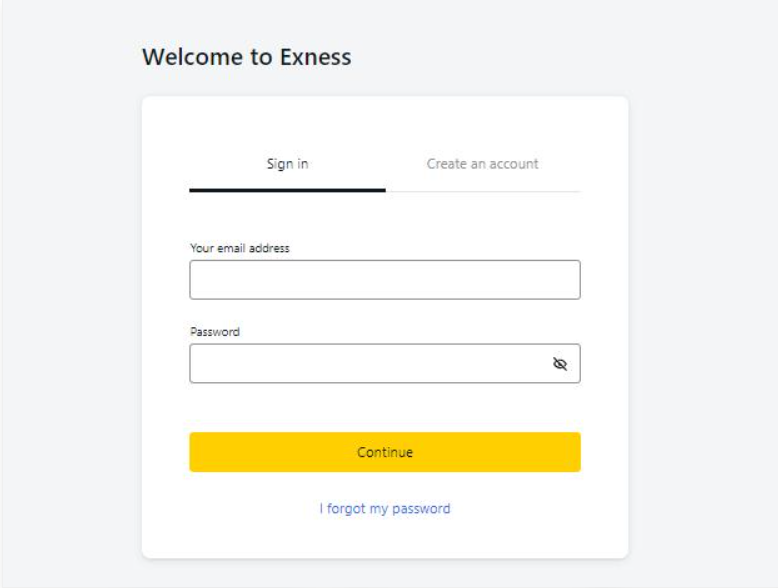
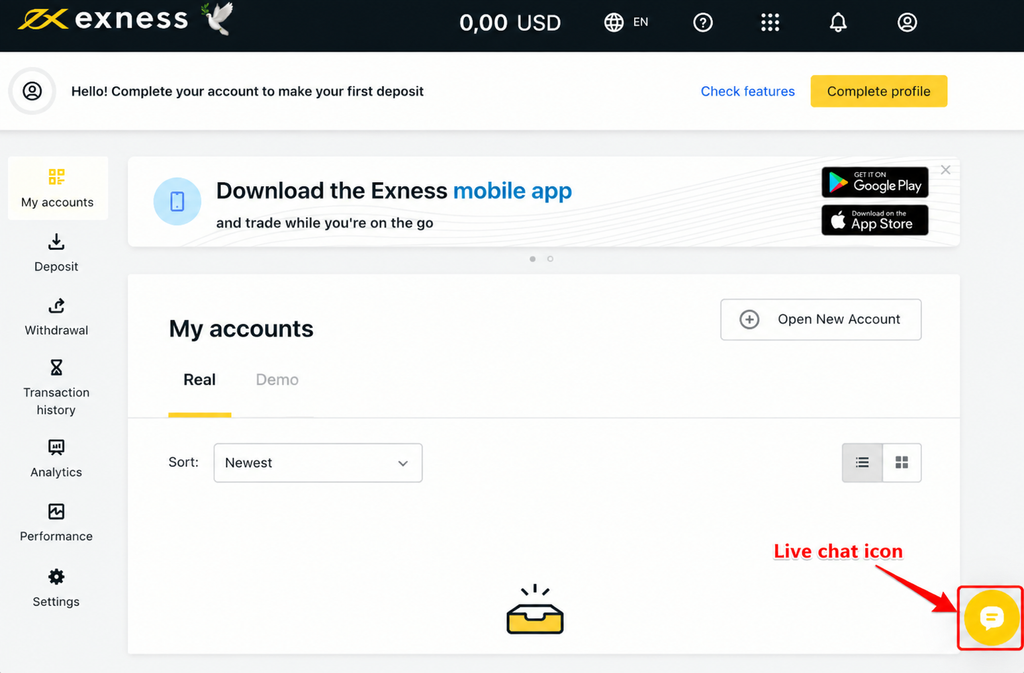
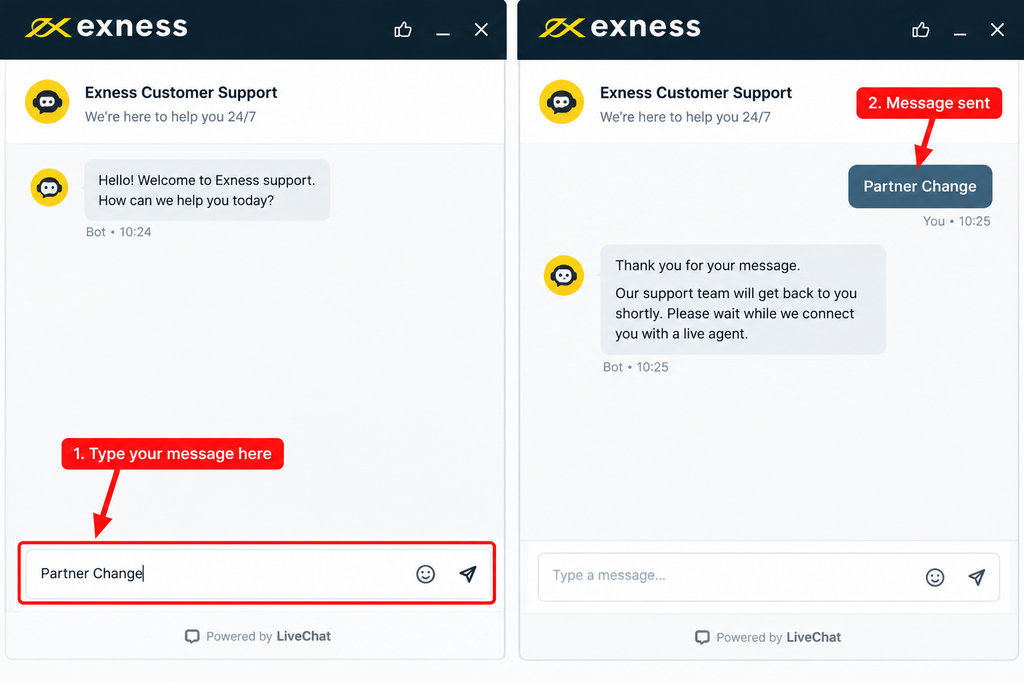
ඔබට දැනටමත් Exness account එකක් තිබේ නම්, අලුතින් account එකක් register කිරීමට අවශ්ය නැහැ. ඔබගේ Exness Personal Area එකට Login වී Customer Support Live Chat එකට ගොස් “Partner Change” ලෙස type කරන්න.
If you already have an Exness account, you do not need to register a new account. Simply log in to your Exness Personal Area, open Customer Support Live Chat, and type “Partner Change.”
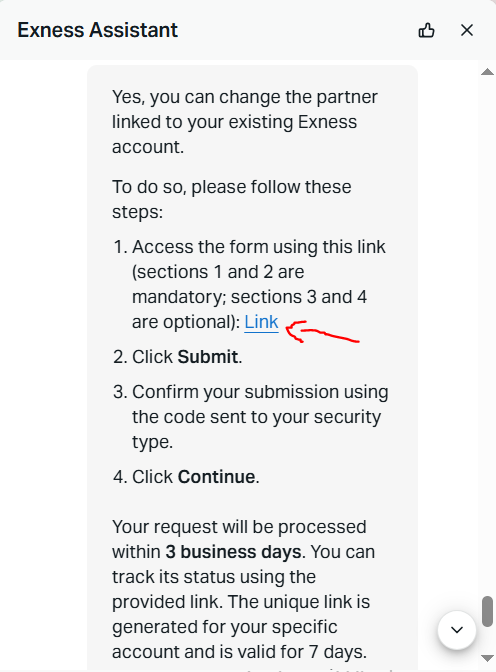
Step 2 – මෙම message එකේ තියෙන “Link” කියන එක click කරන්න. Click the “Link” in this message.
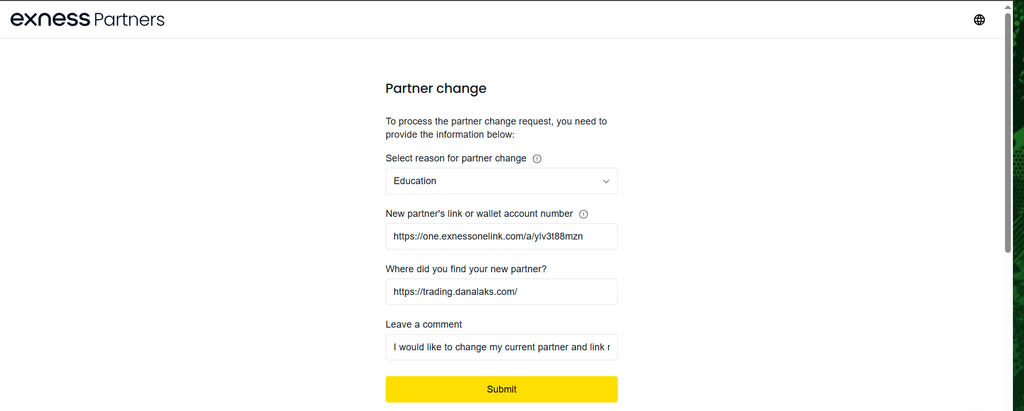
Step 3 – මේ විස්තරවලට අදාළ තොරතුරු ඇතුළත් කරලා මෙම Form එක පුරවන්න. Fill out this form by entering the relevant details.
1️⃣ Select reason for partner change
ඔයාගේ Partner Change කිරීමට අදාළ සැබෑ හේතුවට ගැළපෙන option එක තෝරන්න.
2️⃣ New partner’s link or wallet account number
මෙම Link එක දාන්න :- https://one.exnessonelink.com/a/ylv3t88mzn
3️⃣ Where did you find your new partner?
4️⃣ Leave a comment
I would like to request a partner change for my existing Exness account and link it to the new partner provided above. Please review my request and let me know if my account is eligible for this change and whether any additional information is required.
5️⃣ Submit
Request එක submit කරලා Exness එකෙන් ලැබෙන පිළිතුර බලාගෙන ඉන්න එක.